3D Models
Using Mappedin SDK for Android with your own map requires a Pro license. Try a demo map for free or refer to the Pricing page for more information.
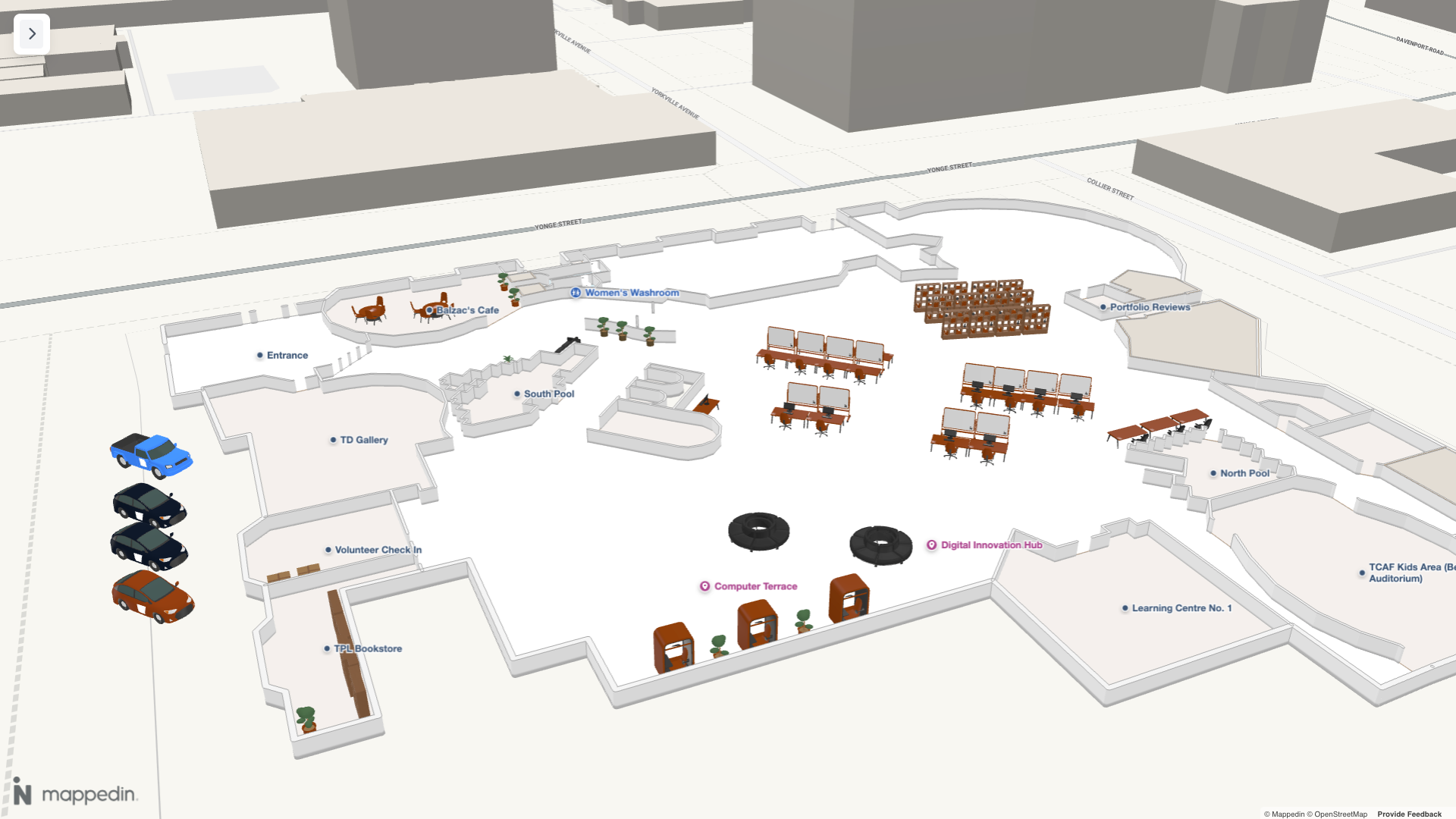
Note that the MapView class instantiates the Models class and exposes it as MapView.models. Use MapView.models to utilize Models's methods.
Adding 3D Models to a Map
Adding 3D models to a map can be a great way to represent landmarks to help users find key locations. They could also be used to show the location of assets or represent furniture to provide a rich indoor layout.
Mappedin SDKs support models in Graphics Library Transmission Format (GLTF) and GL Transmission Format Binary (GLB) format. Models with nested meshes are not supported and should not be used.
3D Models can be added to the map using the MapView.models.add() method. The add method requires a Coordinate to place the model and a URL of the model file. Optionally, the model's interactivity, rotation, scale and more can also be set using the options parameter, which accepts a AddModelOptions. Models can be updated by calling the MapView.updateState() method.
A complete example demonstrating 3D models can be found in the Mappedin Android GitHub repo: ModelsDemoActivity.kt
The following code samples demonstrate adding a 3D model to the map.
val modelUrl = "https://appassets.androidplatform.net/assets/3d_assets/model.glb"

val rotation =
  listOf(
    0.0,
    0.0,
    197.0,
  )

val scale =
  AddModelOptions.Scale.PerAxis(
    1.0,
    1.0,
    1.0,
  )

val coordinate = Coordinate(45, -75)

val opts =
  AddModelOptions(
    interactive = true,
    rotation = rotation,
    scale = scale,
    verticalOffset = 0.0,
    visibleThroughGeometry = false,
  )

// Add the model
mapView.models.add(coordinate, modelUrl, opts) { result ->
  result.onSuccess {
    Log.d("ModelsDemoActivity", "Successfully added model")
  }
  result.onFailure { error ->
    Log.e("ModelsDemoActivity", "Failed to add model: ${error.message}")
  }
}
Mappedin 3D Model Library
The Mappedin 3D Assets Library is a collection of 3D models that can be used to represent landmarks, assets, and furniture on a map. It is optimized for use with Mappedin SDKs. These models are used in the 3D Model Mapper tool, which allows you to place models on a map and customize their appearance. The ModelsDemoActivity.kt example demonstrates how to use the JSON file exported from the 3D Model Mapper to add 3D models to a map.
These models are available in the Mappedin Android Demo Project in GitHub within the assets/3d_assets directory.
Model List
The Mappedin 3D Assets Library contains the following models. Each model's default blue color and white Mappedin logo color can be customized when adding it to the map.
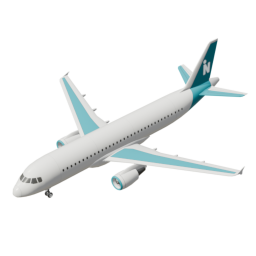 Airplane | 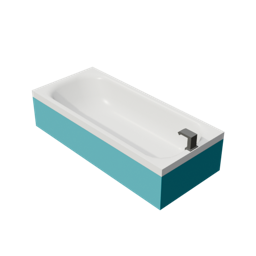 Bathtub | 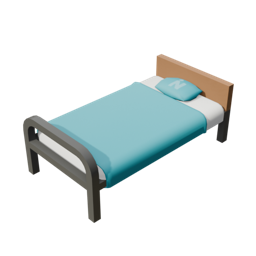 Bed |
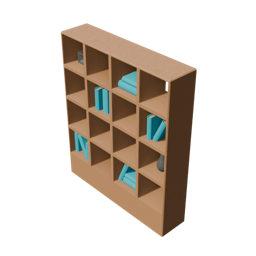 Bookshelf | 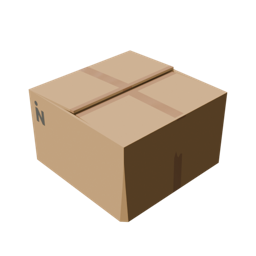 Box Cardboard |  Can Garbage |
 Can Recycling | 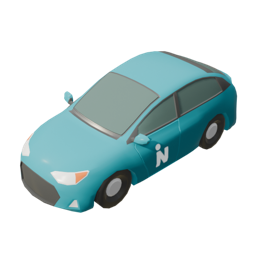 Car | 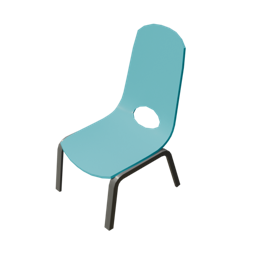 Chair |
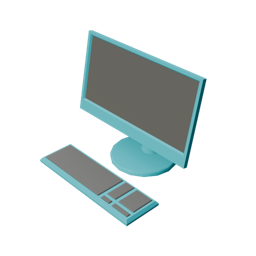 Computer | 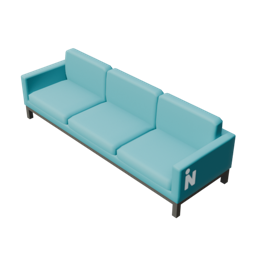 Couch | 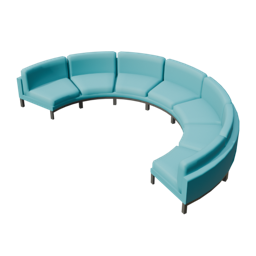 Couch Curved |
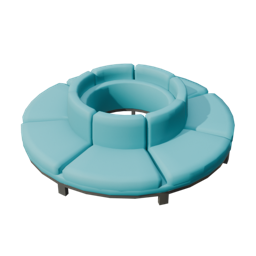 Couch Outward Curve | 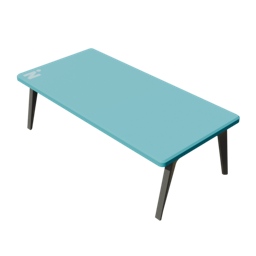 Desk | 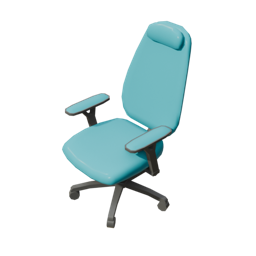 Desk Chair |
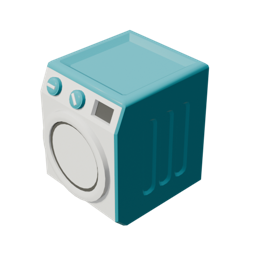 Dryer | 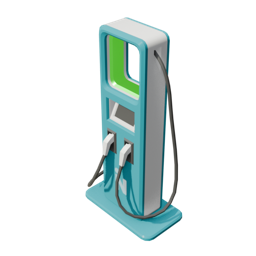 EV Charger | 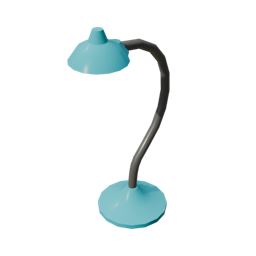 Floor Lamp |
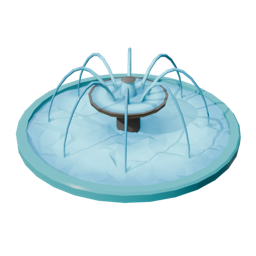 Fountain | 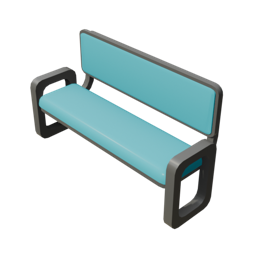 High Bench | 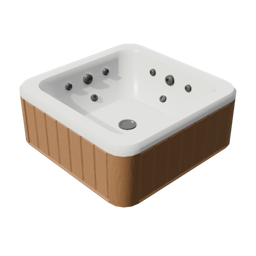 Hot Tub |
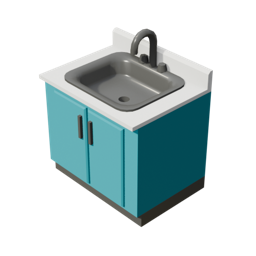 Kitchen Sink | 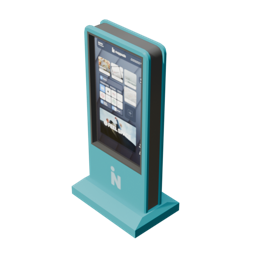 Kiosk |  Plant 1 |
 Plant 2 | 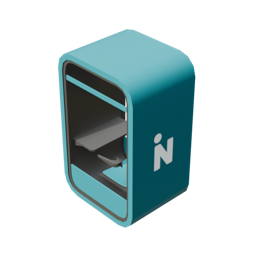 Privacy Booth | 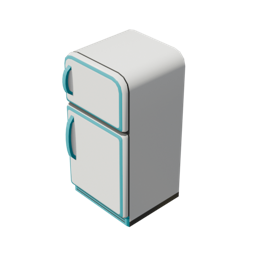 Refrigerator |
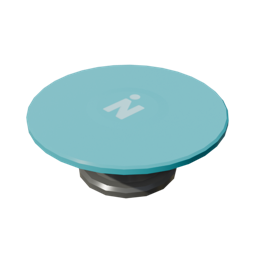 Round Table | 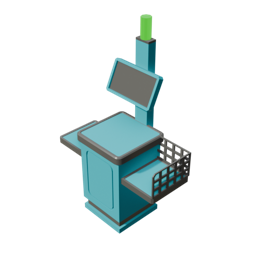 Self Checkout | 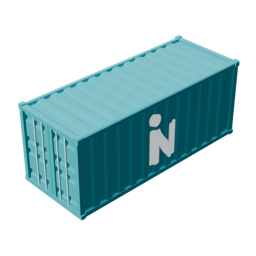 Shipping Container |
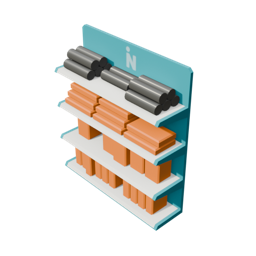 Shopping Shelves | 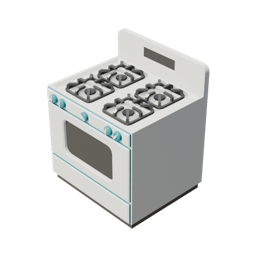 Stove | 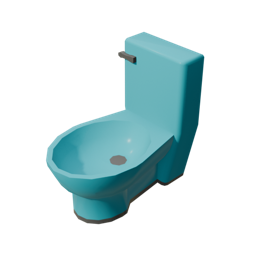 Toilet |
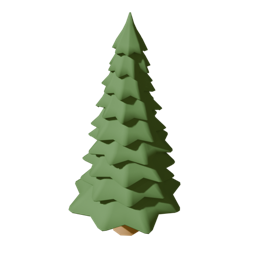 Tree Pine | 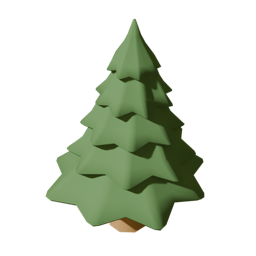 Tree Pine Short | 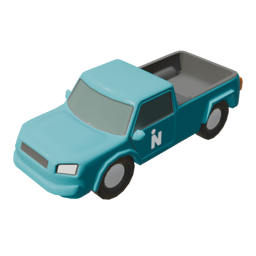 Truck |
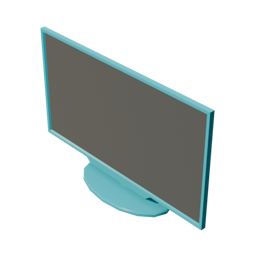 TV | 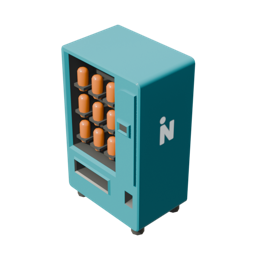 Vending Machine | 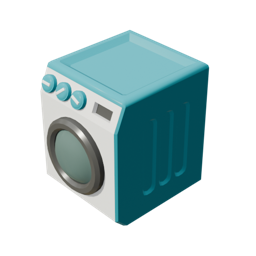 Washer |
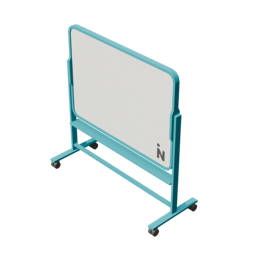 Whiteboard | 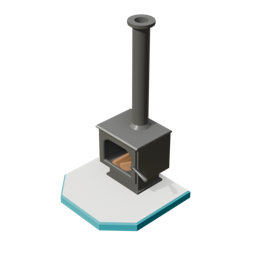 Wood Stove |