Icons
Using Mappedin SDK for iOS with your own map requires a Pro license. Try a demo map for free or refer to the Pricing page for more information.
Mappedin SDK for iOS provides access to Mappedin's icon library through the Icons class. Icons are Content Delivery Network (CDN) backed Scalable Vector Graphics (SVG) assets served from a global CDN with North America and Europe regions, and can be looked up by name, type, subtype, category, or tags.
A complete example demonstrating Icons can be found in the Mappedin iOS GitHub repo: IconsDemoViewController.swift
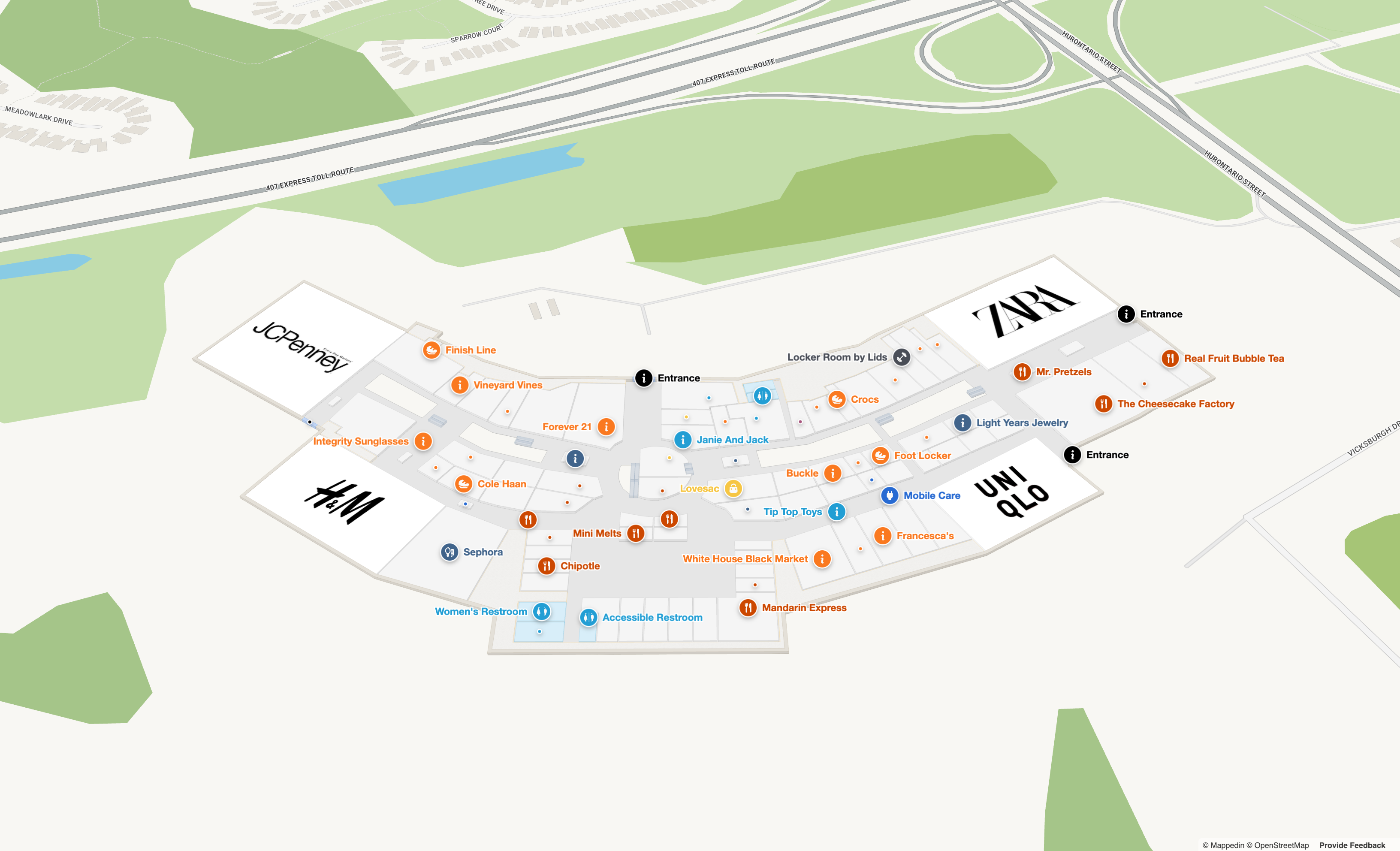
Note that the MapView class instantiates the Icons class and exposes it as MapView.icons. The Icons API is map-independent: it registers automatically as soon as the bridge is ready and does not require a map to be loaded.
Initialization
The Icons extension is initialized automatically with the North America CDN. To serve icons from a different region, call Icons.initialize() with an IconCdnRegion. The default region is IconCdnRegion.na and the European CDN is IconCdnRegion.eu.
// Re-initialize with the European CDN
mapView.icons.initialize(region: .eu) { _ in
    // Ready to look up and fetch icons from the EU region.
}
Icon Types
Icons are organized into a hierarchy of types, subtypes, and categories. Each icon has an IconType that classifies it by its primary usage context.
| Type | Description |
|---|---|
IconType.categories | Icons for map locations and amenities. Further classified by IconSubtype. |
IconType.small | Compact icons designed for Labels on maps. |
IconType.input | Icons for UI input elements. |
IconType.metadata | Fallback and miscellaneous icons. |
Subtypes
Icons with IconType.categories are further classified by IconSubtype:
| Subtype | Description |
|---|---|
IconSubtype.locations | Location category icons organized by business type (e.g., Food, Fashion, Entertainment). |
IconSubtype.amenities | Amenity icons (e.g., Washrooms, Accessibility). |
IconSubtype.general | General purpose category icons. |
IconSubtype.system | System icons (e.g., Elevator, Escalator, Stairs). |
Categories
Location icons within IconSubtype.locations can be further filtered by IconCategory, which represents business domains such as foodAndDrink, fashion, entertainment, hospital, transportation, and many more.
Icon Gallery
The Icons API can be used to build a gallery of all available icons, organized by type. The following code sample fetches all icons of a given type and renders each one's SVG. A complete gallery example is available in IconGalleryViewController.swift.
mapView.icons.getByType(type: .categories) { result in
    guard case .success(let icons) = result else { return }
    icons.forEach { icon in
        mapView.icons.fetchSvg(name: icon.name) { svgResult in
            guard case .success(let svg) = svgResult else { return }
            // Render the SVG, for example in a WKWebView cell.
        }
    }
}
Looking Up Icons
The Icons class provides several methods for finding icons. Each method delivers one or more MappedinIcon values through a Result callback. A MappedinIcon contains the icon's name, url, type, tags, and other metadata.
// Look up a single icon by its unique name
mapView.icons.getByName(name: "information") { result in
    if case .success(let icon) = result {
        print(icon.url)  // Full CDN URL to the SVG file
        print(icon.tags)
    }
}

// Filter by type
mapView.icons.getByType(type: .categories) { result in /* ... */ }

// Filter by subtype
mapView.icons.getBySubtype(subtype: .amenities) { result in /* ... */ }

// Filter by business category
mapView.icons.getByCategory(category: .foodAndDrink) { result in /* ... */ }

// Search by tags (case-insensitive)
mapView.icons.getByTags(tags: ["Washroom", "Restroom"]) { result in /* ... */ }

// Get all icons
mapView.icons.getAll { result in /* ... */ }
| Method | Description |
|---|---|
| getByName() | Returns a single MappedinIcon by its unique name. |
| getByType() | Returns all icons matching an IconType. |
| getBySubtype() | Returns all icons matching an IconSubtype. |
| getByCategory() | Returns all icons matching an IconCategory. |
| getByTags() | Returns all icons matching any of the provided tags. Case-insensitive. |
| getAll() | Returns every icon in the library. |
| getSmallIcon() | Returns the compact variant of an icon, if one exists. |
Fetching and Displaying Icons
The fetchSvg() method retrieves the raw SVG markup for an icon from the CDN (or from the in-memory cache if it has been pre-fetched). The returned string can be rendered in any view that displays SVG content, such as a WKWebView.
mapView.icons.fetchSvg(name: "information") { result in
    guard case .success(let svg) = result else { return }
    // svg is the raw SVG markup. Render it, for example inside a WKWebView.
}
Styling Icons with currentColor
Mappedin icon SVGs use fill="currentColor". When rendering an icon in a WKWebView, the icon inherits the CSS color of its container, so the fill color can be set without modifying the SVG. Alternatively, the currentColor token can be replaced directly in the SVG string before rendering.
mapView.icons.fetchSvg(name: "information") { result in
    guard case .success(let svg) = result else { return }
    let coloredSvg = svg.replacingOccurrences(of: "currentColor", with: "#ff5733")
    // Render coloredSvg.
}
A complete example demonstrating recoloring icons in real time with a color picker can be found in the Mappedin iOS GitHub repo: ColorPickerViewController.swift
Pre-fetching Icons
For applications that need icons available instantly without waiting for network requests, the Icons class provides several pre-fetching methods. Pre-fetched SVGs are stored in an in-memory cache and returned immediately by subsequent fetchSvg() calls.
// Pre-fetch specific icons by name
mapView.icons.prefetch(names: ["information", "elevator-up", "book"]) { _ in
    // Check whether an icon is already cached
    mapView.icons.isCached(name: "information") { result in
        let cached = (try? result.get()) ?? false
        print("isCached = \(cached)")
    }
}

// Pre-fetch all icons of a given type
mapView.icons.prefetchByType(type: .small) { _ in /* ... */ }

// Pre-fetch all icons of a given subtype
mapView.icons.prefetchBySubtype(subtype: .amenities) { _ in /* ... */ }

// Pre-fetch all icons in a business category
mapView.icons.prefetchByCategory(category: .foodAndDrink) { _ in /* ... */ }
| Method | Description |
|---|---|
| prefetch() | Pre-fetches a list of icons by name. |
| prefetchByType() | Pre-fetches all icons of a given IconType. |
| prefetchBySubtype() | Pre-fetches all icons of a given IconSubtype. |
| prefetchByCategory() | Pre-fetches all icons in a given IconCategory. |
| isCached() | Returns true if the icon's SVG is already in the cache. |
| clearCache() | Clears all cached SVG content. |
A complete example demonstrating pre-fetching by name, type, subtype, and category, along with a comparison of cached versus uncached fetch performance, can be found in the Mappedin iOS GitHub repo: PrefetchDemoViewController.swift
Using Icons of Mappedin CMS Categories
The category icons configured in the Mappedin Content Management System (CMS) are included in the icon library. The EnterpriseCategory.iconFromDefaultList property provides the icon name that maps directly to an icon in the library.
When displaying icons on Labels, the compact Small icon variant works best. The getSmallIcon() method or the MappedinIcon.smallIcon property returns the name of the small variant for a given icon. Because the SVGs use fill="currentColor", the fill color can be replaced in the SVG string before passing it to the Label's icon appearance.
The following code sample looks up the small icon for an enterprise location's first category, recolors it, and adds a label for each space of that location.
let category = location.categories.first.flatMap { categoriesById[$0] }
let iconName = category?.iconFromDefaultList ?? "information"
let color = category?.color ?? "black"

mapView.icons.getByName(name: iconName) { iconResult in
    let smallIconName: String
    switch iconResult {
    case .success(let icon):
        smallIconName = icon.smallIcon ?? "small-information-desk"
    case .failure:
        smallIconName = "small-information-desk"
    }

    mapView.icons.fetchSvg(name: smallIconName) { svgResult in
        guard case .success(let svg) = svgResult else { return }
        let coloredSvg = svg.replacingOccurrences(of: "currentColor", with: "#fafafa")
        let appearance = LabelAppearance(color: color, icon: coloredSvg, iconPadding: 10)
        let labelOptions = AddLabelOptions(labelAppearance: appearance)

        for spaceId in location.spaces {
            guard let space = spacesById[spaceId] else { continue }
            mapView.labels.add(target: space, text: location.name, options: labelOptions)
        }
    }
}
A complete example that loads the Mappedin Demo Enterprise map and labels each enterprise location with its category icon can be found in the Mappedin iOS GitHub repo: EnterpriseCategoryIconsViewController.swift