Yarooms
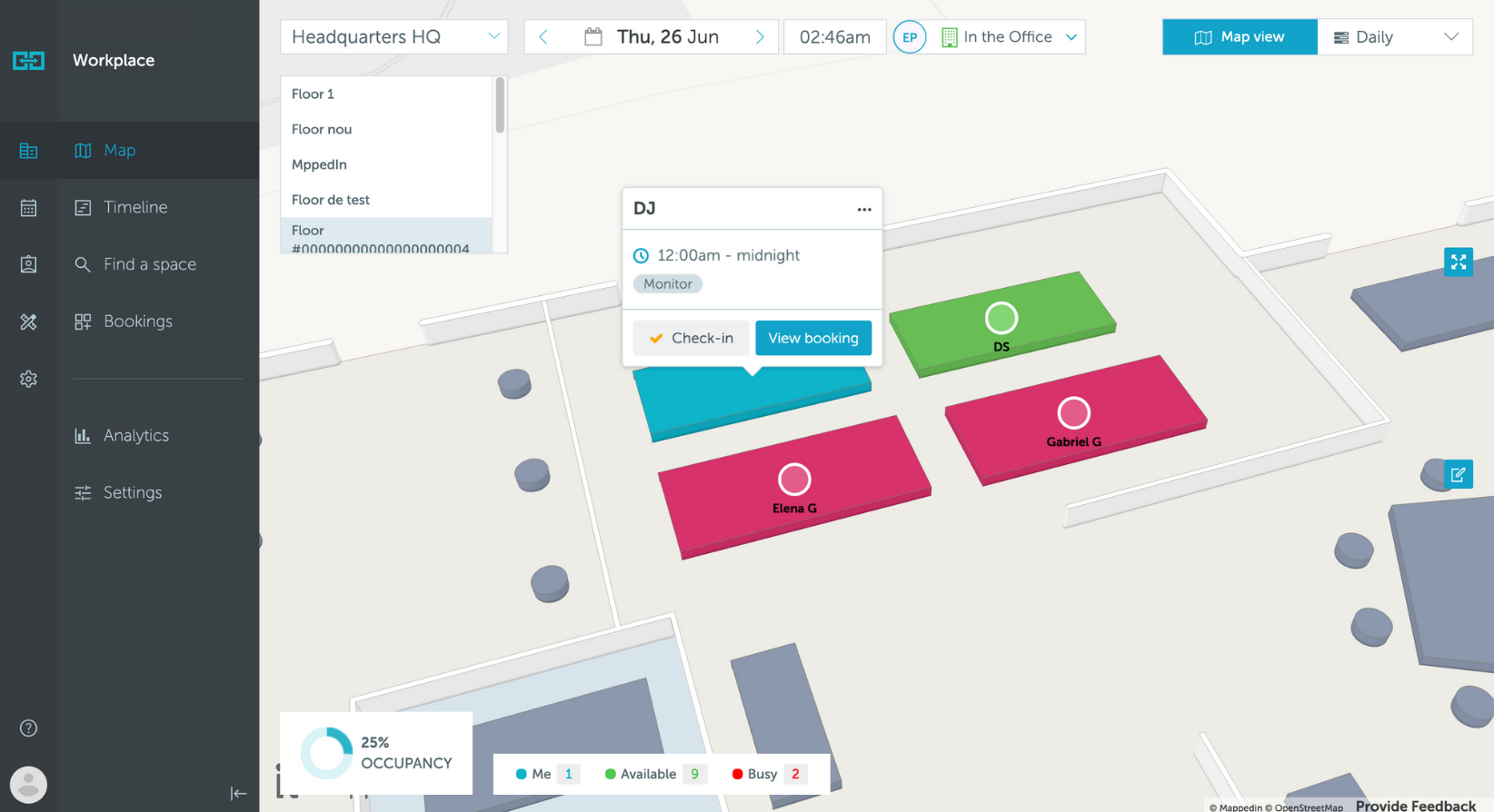
Yarooms is a workplace management platform for desk/room booking, hybrid work scheduling, visitor management, and digital signage. Integrating Mappedin with Yarooms adds 3D maps and indoor wayfinding so employees and visitors can find (and book) spaces visually.
Features
- 3D office maps in Yarooms
- Wayfinding directions within the office
- A map experience that helps users discover and reserve spaces more easily
Get Started
To get started, contact Mappedin to coordinate setup with Yarooms. For assistance with Yarooms, please refer to the Yarooms Help Center.
Prerequisites
- A Mappedin indoor map
- Access to Yarooms Admin settings
- Yarooms-provided Mappedin credentials (Client ID / Client Secret), if required
- Venue ID for a Mappedin map
Configuration Instructions
Yarooms recommends setting up this integration with a Yarooms specialist for optimal results.
Step 1: Ensure a Mappedin Floor Plan is Ready, and Create a Map
Based on your contract, either Yarooms or Mappedin will create the floor plan, including spaces, rooms, walls, and connecting areas like elevators and stairs.
Step 2: Create a Mappedin Key and Secret
A key and secret to use Mappedin Demo maps can be found on the Demo Keys & Maps Page. To use your own maps, create your own unique key and secret.
Using maps with your own key and secret requires a Pro or Solutions Map Account.
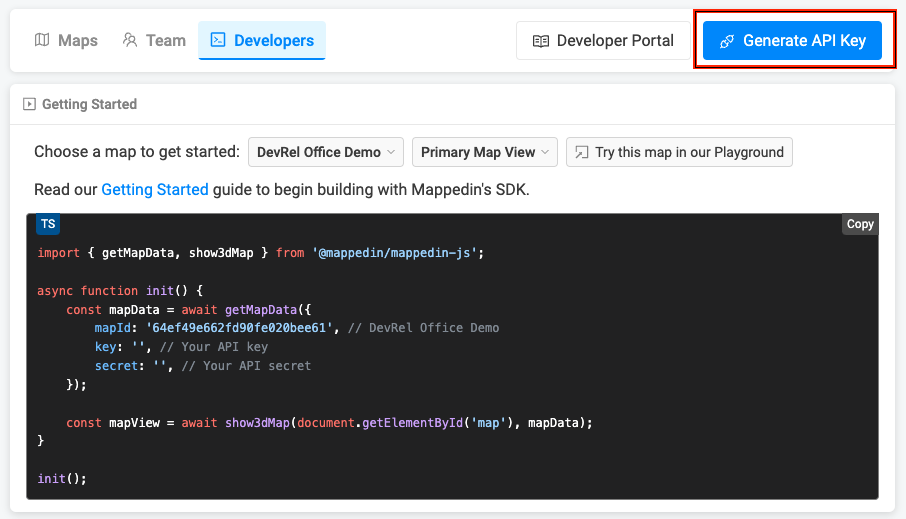
- Log into Mappedin Maker.
- Click on the
Developerstab. - Click
Generate API Key. - Enter a name for the key.
- Click
Generate Key. - Store the
keyandsecretis a safe and secure place.
Get a Map Id
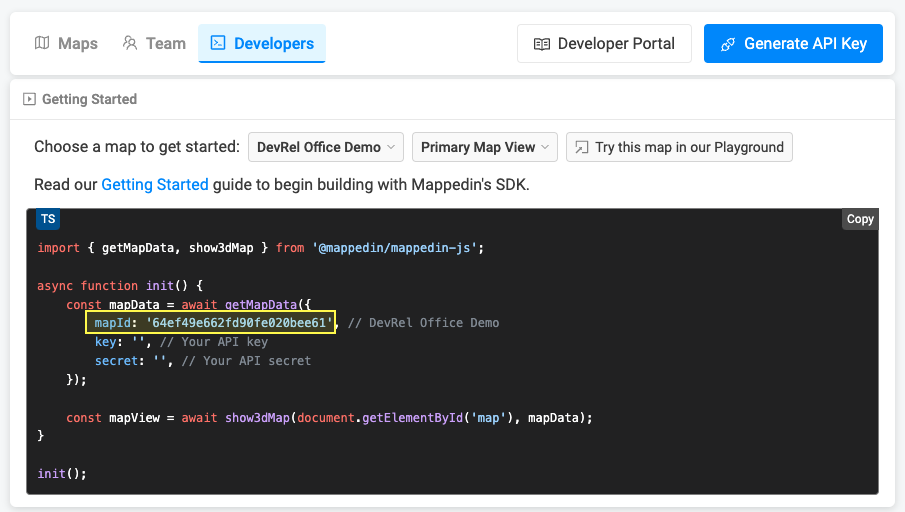
Each map has a unique identifier used by Mappedin JS to load a map. To get the mapId of a map:
- Log into Mappedin Maker.
- Click on the
Developerstab. - Select the desired map from the dropdown.
- The
mapIdwill be shown in the code snippet.
Not seeing your map?
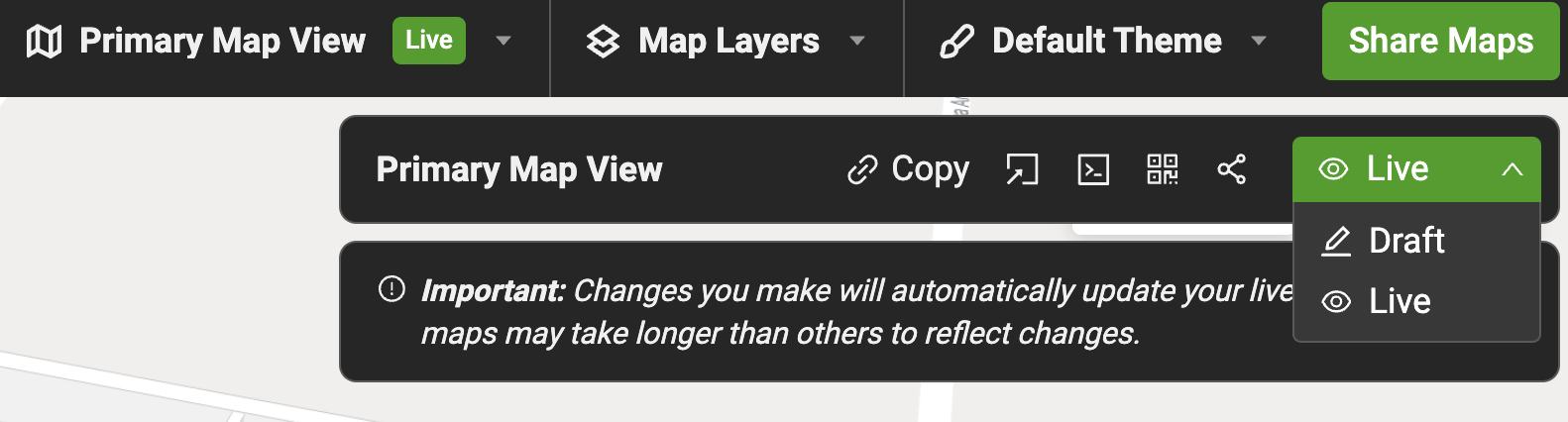
- Remember to set the map to Live. To do so click on the
Share Mapsbutton and changeDrafttoLive. - Integrations require a Pro or Enterprise Map Account. Demo API Keys will only work for Mappedin demo maps.
Step 3: Activate the Integration in Yarooms
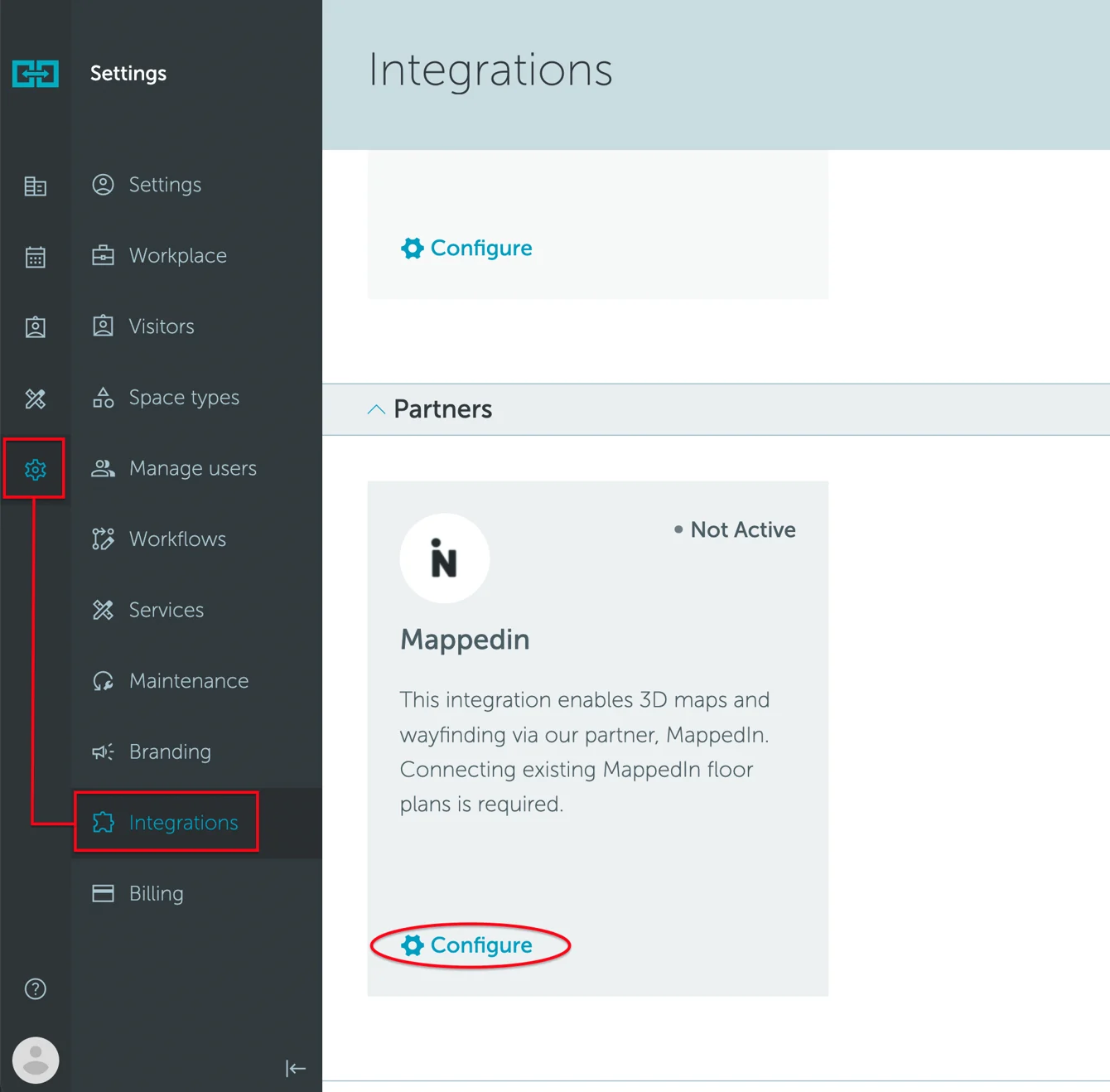
- In Yarooms, go to Settings → Integrations → Partners → Mappedin.
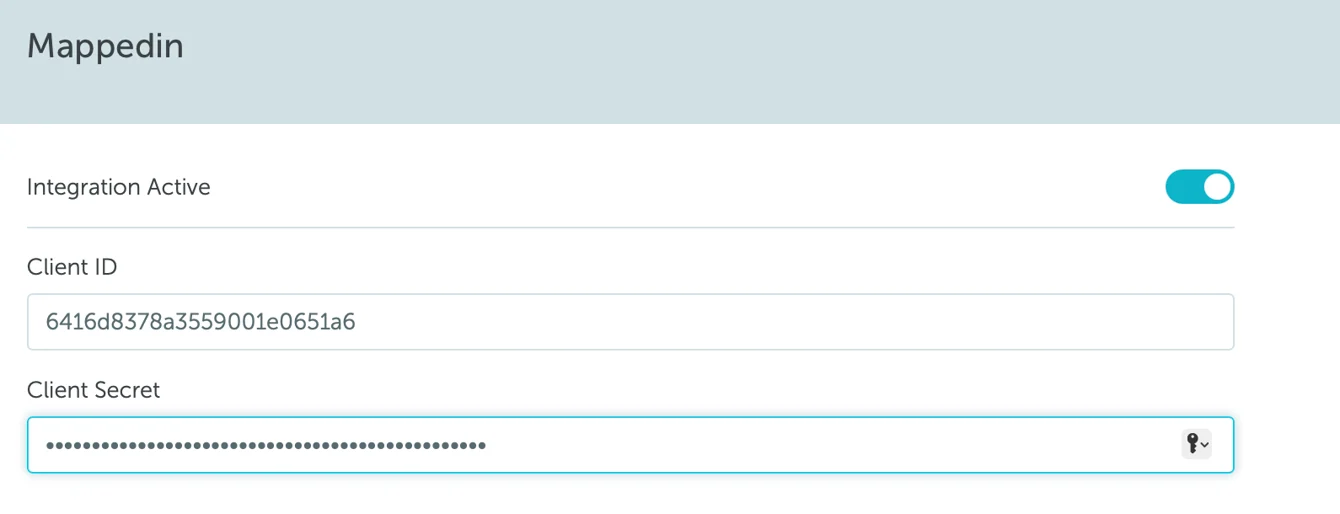
- Activate the integration using a Mappedin Key and Secret created in the previous step.
Step 4: Enable Mappedin on each Floor and add the Map ID
- Go to Settings → Workplace.
- Click the name of a floor → Edit → Map.
- Set Map view to “Mappedin”.
- Add the Map ID.
To find the Map ID, go to the Mappedin dashboard and open the Developers tab. Select the map and copy the Map ID.
Step 5: Match Yarooms Spaces to Mappedin Spaces
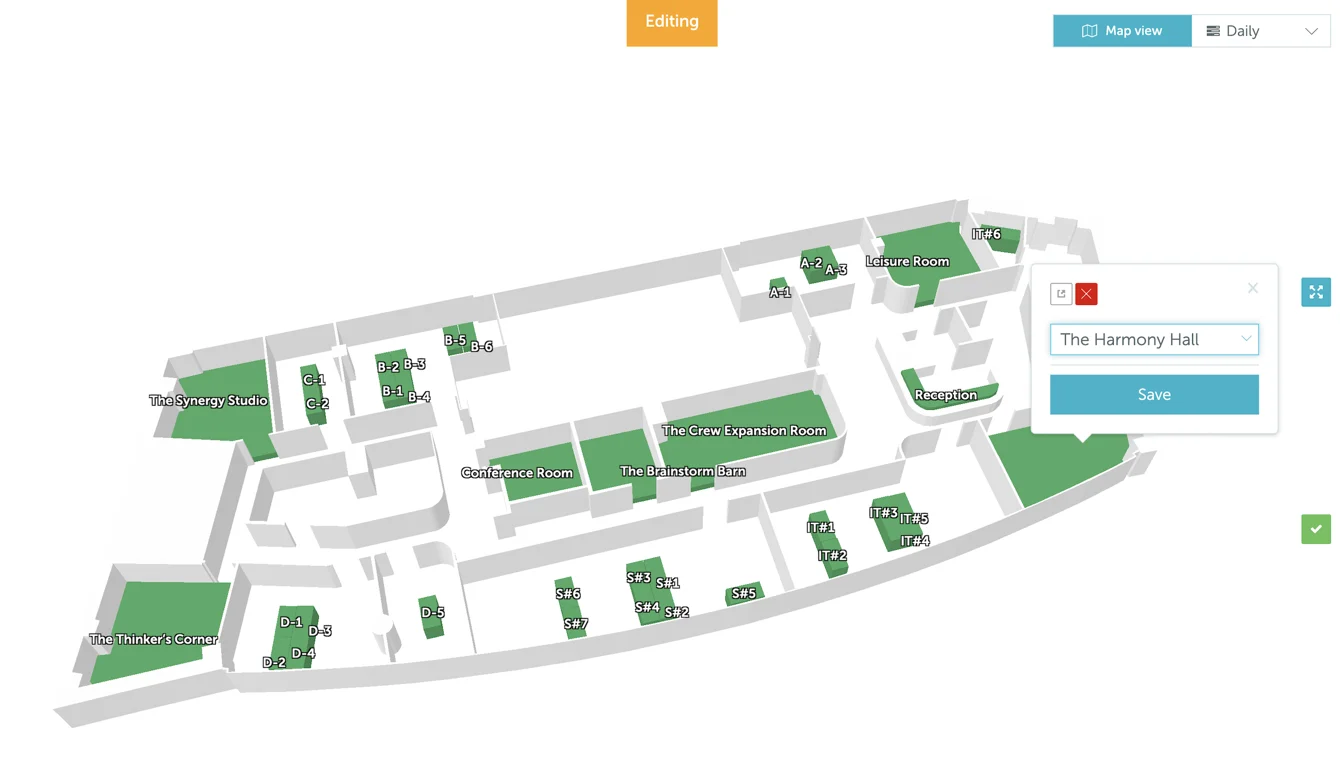
- Go to Workplace → Map.
- Click “Edit mode” (right side of the map).
- Add/link your Yarooms spaces to the corresponding Mappedin polygons.
Step 6: Validate Wayfinding
Once spaces are matched, users can search for a space on the map and get wayfinding directions from their current location (booked space).
To view the Yarooms documentation, see here.