Self Hosted
Mappedin Web is a fully packaged enterprise solution that can be easily embedded into a website to provide access to the Mappedin Web platform. Learn how to integrate Mappedin Web into a web site.
Prerequisites
Before embedding Mappedin Web, the following requirements must be met:
- Venue is fully mapped and tested (demo links are provided to preview the front-end experience)
- Location data is up to date and ready for production
- Mappedin venue keys have been provided
Integration
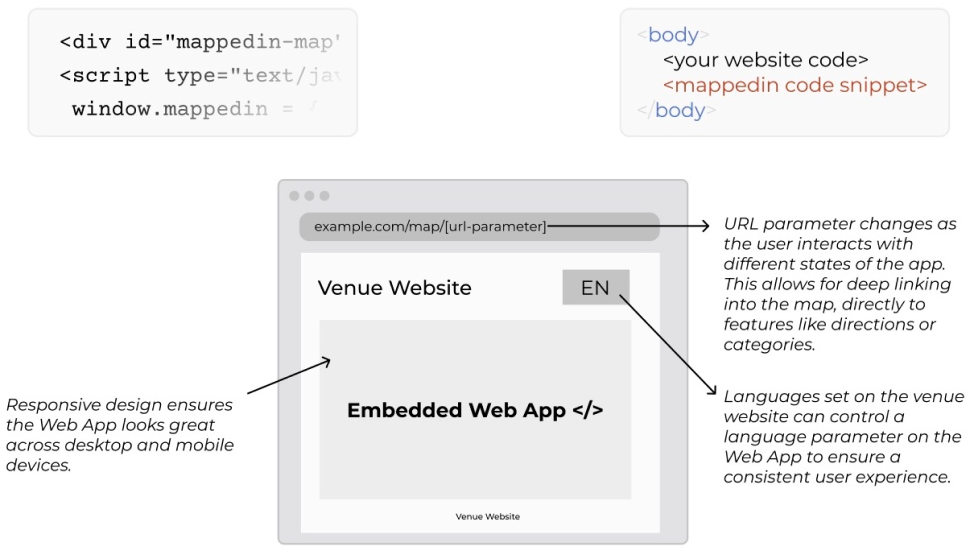
Mappedin provides credentials and specific instructions. At a high level, the integration requires an HTML element, a JavaScript configuration object, and an external stylesheet.
Place the following external stylesheet in the <head>:
<link href="https://cdn.mappedin.com/web2/release/mappedin-web.css?venue=<YOUR-VENUE>" rel="stylesheet" />
and include the following JavaScript snippet in the <body>:
<div data-key="externalId" id="mappedin-map"></div>

<script type="text/javascript">
	window.mappedin = {
		miKey: {
			id: '<YOUR-CREDENTIALS>',
			key: '<YOUR-CREDENTIALS>',
		},
		venue: '<YOUR-VENUE>',
	};
</script>

<script id="mappedin-web" type="module" src="https://cdn.mappedin.com/web2/release/mappedin-web.js?venue=<YOUR-VENUE>"></script>
The map expands to the maximum allowed size based on the parent div of the #mappedin-map element. Positioning and sizing that element for desktop and mobile, will ensure that the map is displayed correctly. If setting the CSS position, it must be set to relative and not absolute or fixed.
The page can also specify the source of the data loaded into Mappedin Web. A separate draft environment is available in the Mappedin CMS (Content Management System) for making changes, updates, or testing without affecting live production data. By default, production data is always loaded. To load draft data instead, set the optional property window.mappedin.useDraftData = true in the configuration snippet.
<script type="text/javascript">
	window.mappedin = {
		// other values from before
		useDraftData: true,
	};
</script>
Mappedin Web also supports specifying links for a privacy policy, terms of use, cookie policy, and cookie settings. These links are always visible on the app. Each can be specified as either a URL string or a callback function that is invoked when the link is clicked. The following properties are available:
<script type="text/javascript">
	window.mappedin = {
		// other values from before
		legal: {
			termsOfUse: 'https://info.mappedin.com/privacy-policy',
			privacyPolicy: () => alert('Privacy policy callback'),
			cookiePolicy: 'https://example.com',
			cookieSettings: () => {
				console.log('Cookie settings callback function can do whatever you want');
			},
		},
	};
</script>
These are all optional properties. As long as one is specified, the appropriate link(s) will be displayed.
Languages
The language for Mappedin Web is set via the language property in the JavaScript configuration object. The value set in window.mappedin determines the language on initial load. If no language is set, it defaults to the browser's language setting or English.
To change the language using JavaScript, modify window.mappedin.language — for example: window.mappedin.language = "fr". This configuration must be set before the Mappedin script loads.
To change the language at runtime after the map is displayed, use the lang URL parameter — for example: ?lang=<languagecode>.
Mappedin Web supports the languages listed below. UI elements provided by Mappedin Web are shown in the chosen language. However, store names, descriptions, and other custom data added to the map may appear in the map's default language if translations for those elements have not been added.
- English (en)
- Arabic (ar)
- Brazilian Portuguese (pt-BR)
- Catalan (ca)
- Chinese (zh)
- Croatian (hr)
- Czech (cs)
- Danish (da)
- Dutch (nl)
- English (UK) (en-GB)
- English (US) (en-US)
- Estonian (et)
- Finnish (fi)
- French (fr)
- French (France) (fr-FR)
- French (Canada) (fr-CA)
- German (de)
- Greek (el)
- Hindi (hi)
- Hungarian (hu)
- Italian (it)
- Japanese (ja)
- Korean (ko)
- Maori (mi)
- Malay (ms)
- Norwegian (no)
- Polish (pl)
- Portuguese (pt)
- Romanian (ro)
- Russian (ru)
- Slovak (sk)
- Slovenian (sl)
- Spanish (es)
- Spanish - US (es-US)
- Swedish (Finland) (sv-FI)
- Tagalog (tl)
- Thai (th)
- Turkish (tr)
- Ukrainian (uk)
- Vietnamese (vi)
These translations are continuously improved. Feedback during the integration review process is welcome.
Requirements
Mappedin Web is embedded as a web component, not an iFrame. It uses the Shadow DOM to hold the necessary HTML, meaning it can co-exist with the rest of a site without being affected by the site's CSS styling. For the best experience across mobile and desktop, the host site should already be designed to be responsive. On desktop, Mappedin Web can appear alongside other site content, though allowing the map to take up as much space as possible (up to a nearly full-screen experience) is recommended. On mobile, Mappedin Web fills the screen and provides its own toolbar on the bottom for a scroll-free, app-centric experience.
There are some specific details for integration that should be taken into account:
- Wrap Mappedin Web in its own container. This container should be styled to take up the whole screen on mobile (
<1024) and fit into the site's responsive layout on desktop views. - On desktop, the minimum width of the container should be 1024px
- On mobile, do not include any more page content than the header and the map; things like footers and other content should be excluded or hidden.
- If the host site utilizes hash navigation, Mappedin Web must live on a static page to not interfere.
Content Security Policy (CSP)
As a mitigation for Cross-Site Scripting (XSS) and other types of web security vulnerabilities, a site may use a Content Security Policy (CSP). If a CSP is in place, Mappedin Web requires the following directives:
img-src 'self' *.mappedin.com data: blob:;
worker-src 'self' blob:;
child-src 'self' blob:;
connect-src 'self' *.mappedin.com data:;
script-src 'self' 'unsafe-inline' *.mappedin.com;
Failing to add these directives could result in unexpected behavior and an error similar to the following being logged in the browser console.
Refused to create a worker from 'blob:https://YOUR.URL' because it violates the following Content Security Policy directive: "default-src https: ws: data: 'unsafe-inline' 'unsafe-eval'". Note that 'worker-src' was not explicitly set, so 'default-src' is used as a fallback.
It is possible to implement a more restrictive CSP policy that does not include worker-src blob: ;. Doing so requires a transparent proxy on the server that forwards requests from https://YOUR.DOMAIN/mappedin-web-redirector/* to https://cdn.mappedin.com/web2/release/*.
Recommendations
These are not required, but to get the best possible experience there are a few extra steps that can be taken:
- Allow the map to take up as much space as possible on mobile and desktop
- On mobile, avoid adding too many elements that decrease the vertical space available for Mappedin Web (this is especially noticeable on smaller devices like the iPhone SE)
- Use a one column layout
- Use a traditional responsive style (CSS media queries, not JavaScript)
- A page can specify
data-key="externalId"on the Mappedin<div>to have external Ids used in the URL instead of internal Ids. The div would look similar to:<div data-key="externalId" id="mappedin-map"></div>. - Avoid including unnecessary functionality on the map page that could impact load times of Mappedin Web
The demo page provided for each venue serves as a reference for how an integration should look. Following the demo experience is recommended.
Full-page integration example
This example shows how to integrate Mappedin Web as a standalone page instead of inserting it in an existing page with other content.